

Ministry of Industry and Mineral Resources · Media Observatory · Daily loop
From a news feed to a decision — what the model proposes, and what you decide
The Media Observatory watches the outlets that matter to you, reads every article with AI, and turns the coverage into things you can act on: entities, figures, story clusters, trends, alerts and signals. Setup is a one-off; after that it is a short daily loop. The rule that runs through the whole module is simple — the model proposes, a person decides, and nothing reaches the rest of your ERP until somebody chooses it.
Connect your sources
Five kinds of source, one form. Do this once — everything after it is automatic.
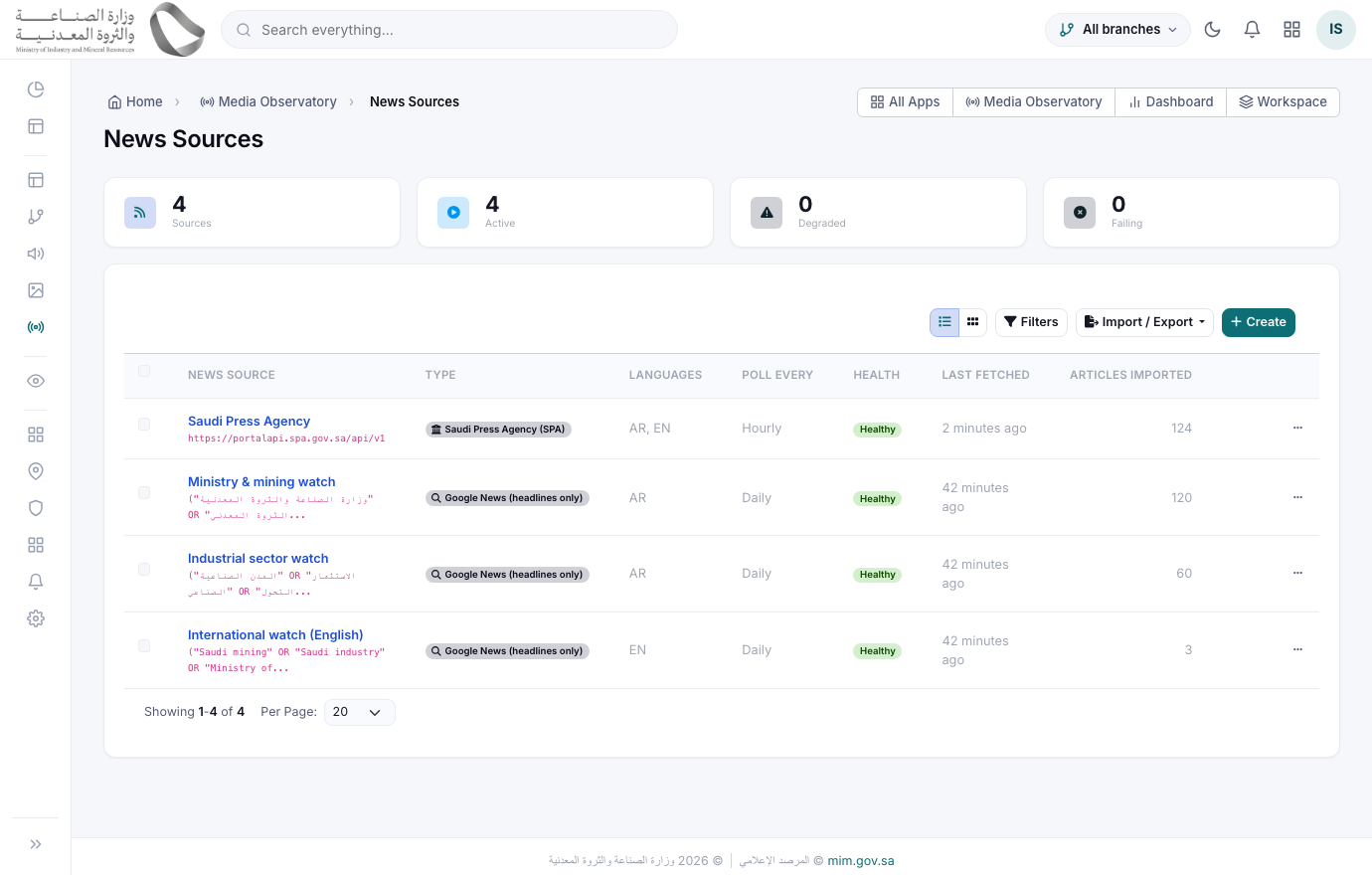
Open the source listالمصادر الإخبارية
AdministratorMedia Observatory › Sources/app/observatory-sources
Each row is one outlet you follow, with a health badge built from its recent runs.
1) Read the badge before anything else — a feed that has quietly stopped returning items shows here, not on your dashboard.
2) Use the row menu to run a source on its own, or open it to see every past run.
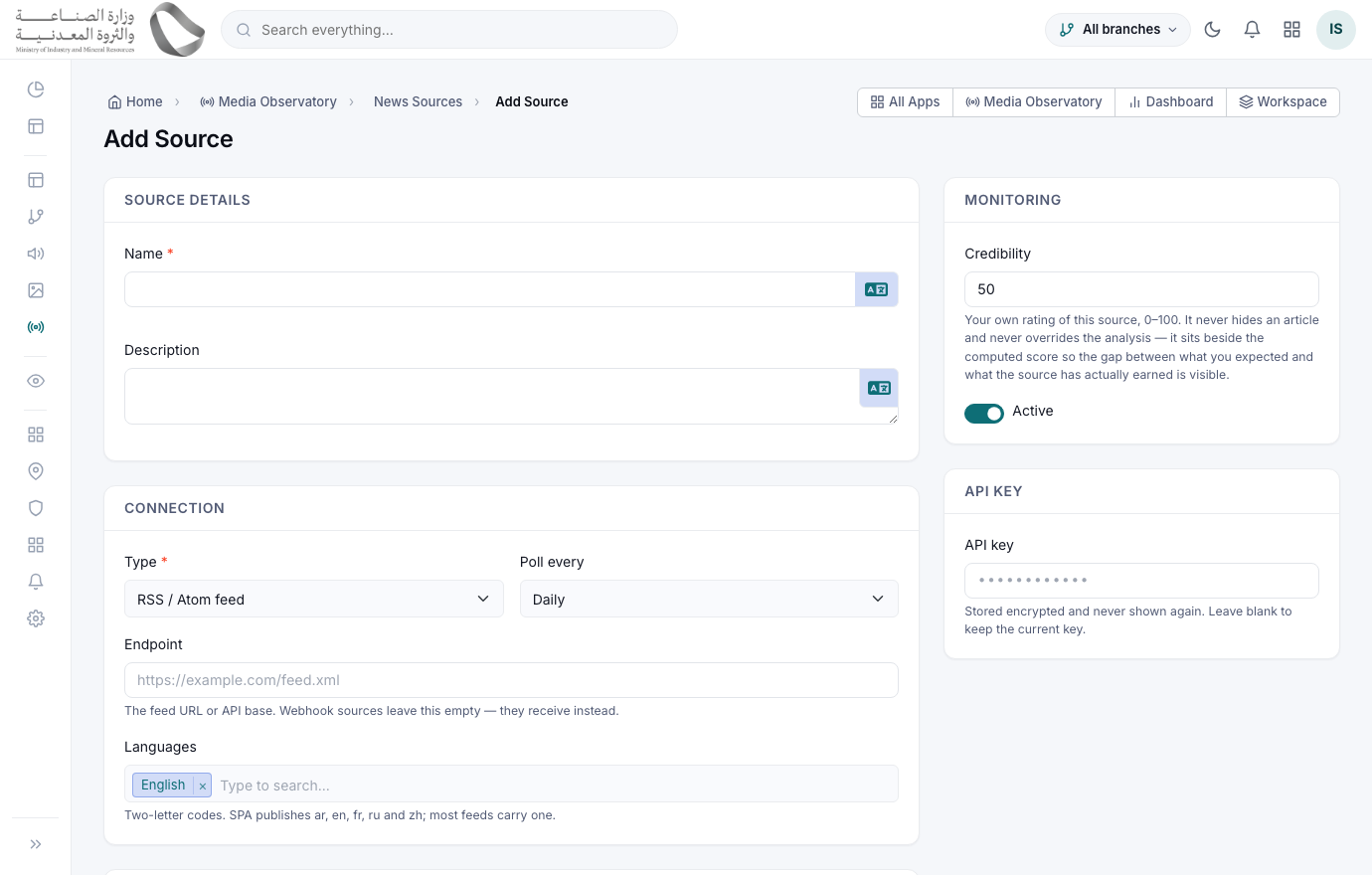
Add a sourceإضافة مصدر
AdministratorSources › New/app/observatory-sources/create
1) Pick the connector type — the form changes to ask only for what that type needs.
2) Paste the endpoint, choose the languages to keep and how often to check.
3) Press Test connection and wait for the result before saving.
4) Save.
Test connection fetches live and reports what it actually found — how many items and a sample headline — so a wrong URL fails here rather than silently returning nothing for a week. Outbound addresses are checked before the call: private networks and loopback are refused, which stops a pasted URL reaching inside your own infrastructure.
The five connector types
| Type | Use it for | What you get |
|---|---|---|
| SPA (Saudi Press Agency) | The official Saudi wire, in Arabic and four other languages. | Headline plus the full body text and the article image. |
| RSS / Atom | Almost any newspaper, magazine or blog that publishes a feed. | Whatever the publisher puts in the feed — usually a summary, often the full text. |
| Google News | Broad sweeps on a search term when you have no direct feed. | Headlines ONLY — Google links cannot be followed to the body, so these are badged and the headline stands in for the text. |
| JSON API | A paid news API or another system of your own. | You map the fields once; everything after that behaves like any other source. |
| Webhook | Push articles in from an agency or a partner. | A private URL with a token you can rotate at any time from the source screen. |
Say what matters to you
The interest profile is what turns a generic news reader into YOUR news reader.
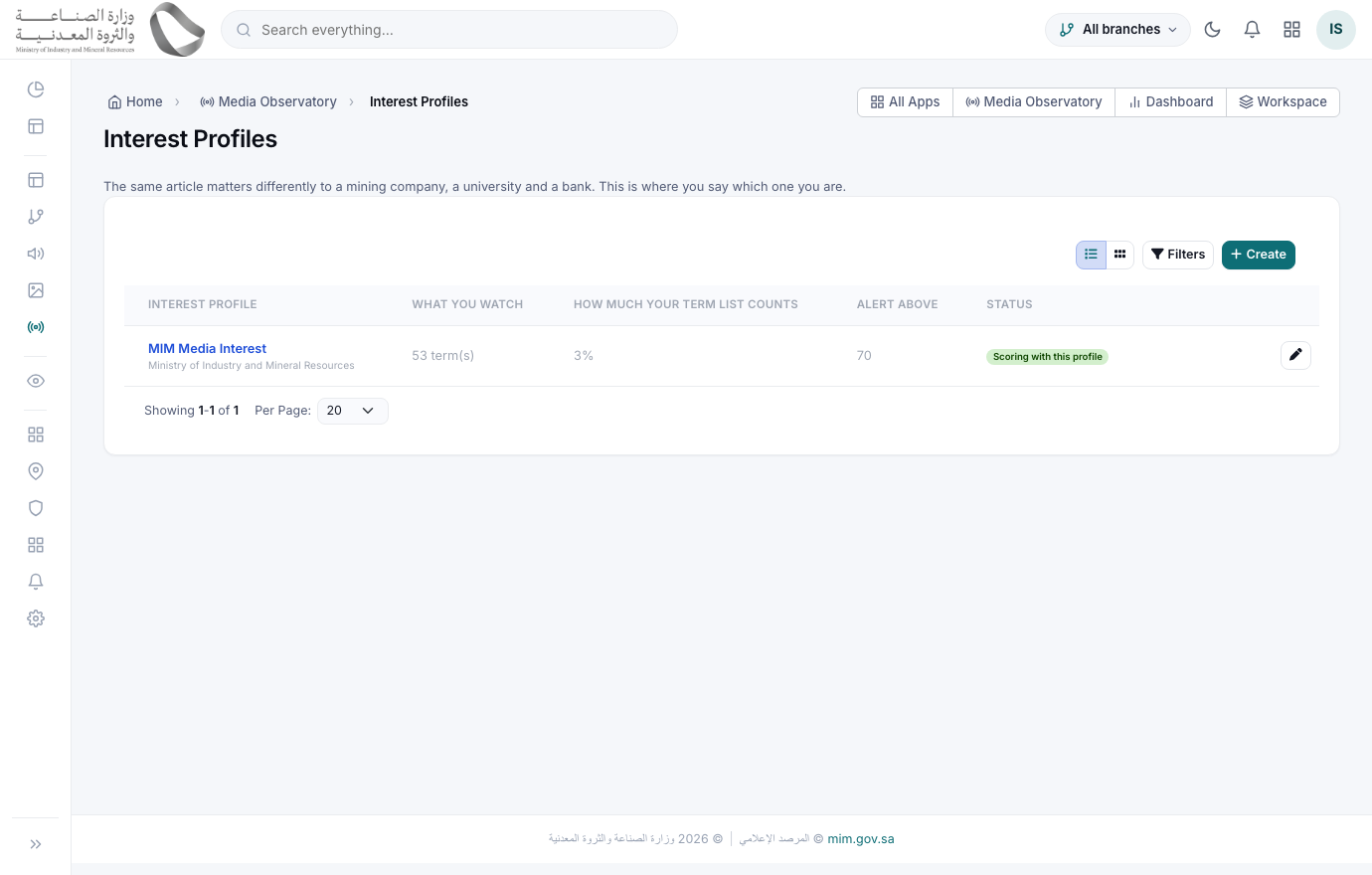
Fill in the interest profileملفّ الاهتمام
AdministratorMedia Observatory › Interest Profile/app/observatory-profiles
1) Describe your organisation in one sentence — this is read by the model, so write it the way you would explain your remit to a new colleague.
2) Add your sectors, competitors, geographies, key people and keywords, each with a weight.
3) Add exclusions for the subjects you never want scored up (sport, for instance).
4) Set “Alert above” — the score an article has to reach before it is allowed to interrupt anybody.
Every relevance score is judged against this profile, and the same profile is handed to the model when it looks for signals. “Alert above” then acts as a floor under every alert rule and every brief: an article scoring below it is still collected, still scored and still searchable — it simply does not raise an alert and does not appear in a brief. Change any of this and you change what the module considers important — no deployment involved.
The profile is data, never instructions. It is rendered into the prompt as a list of subjects to weigh, so nothing written in it can change how the module behaves — only what it considers relevant. Raising “Alert above” quietens the alerts and the briefs; it never hides anything from the article list, so what you silenced is always still findable.
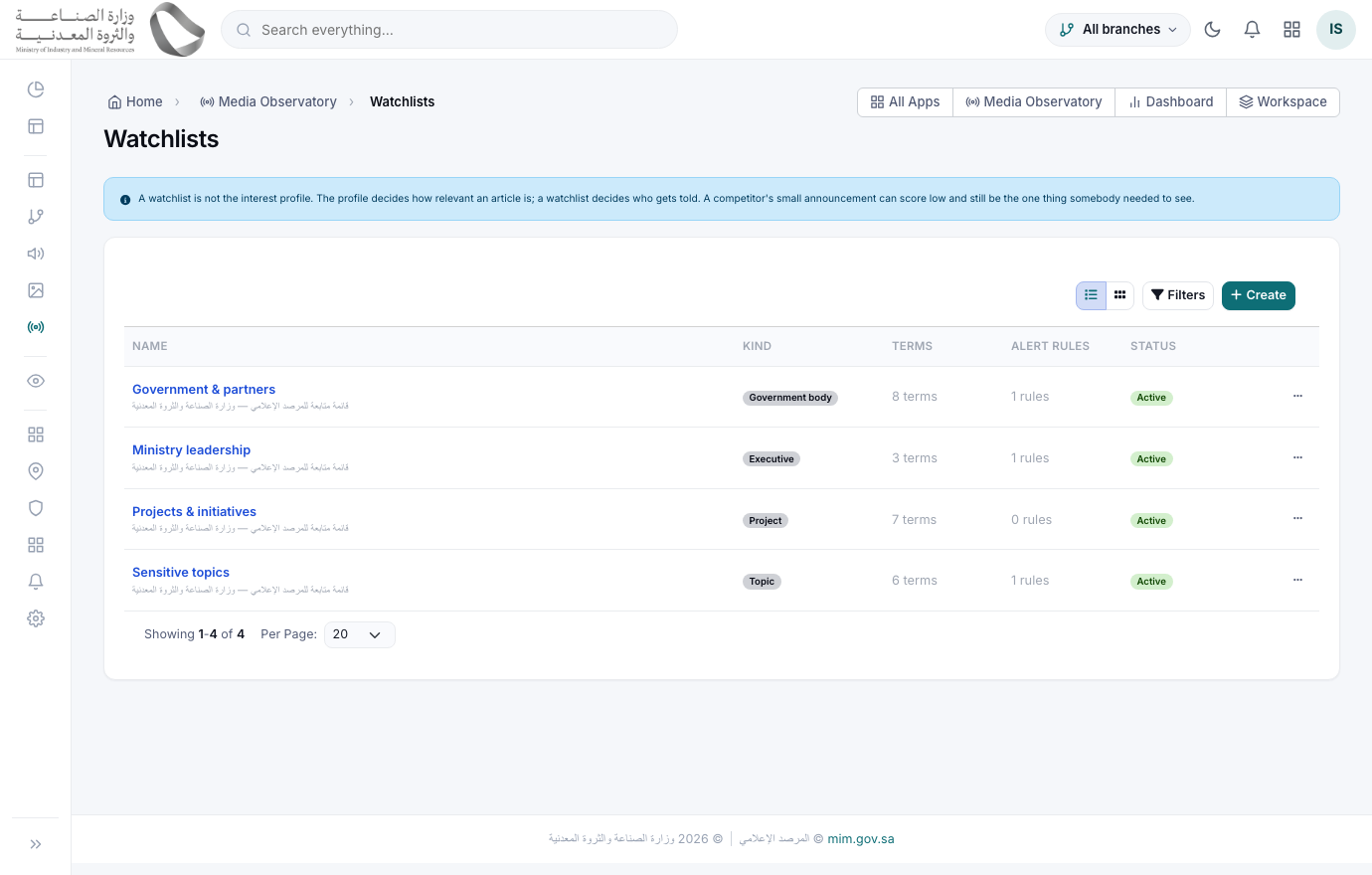
Add watchlistsقوائم المتابعة
AnalystMedia Observatory › Watchlists/app/observatory-watchlists
Group the names you want followed: competitors, customers, suppliers, government bodies, projects, executives or regions. One list per theme keeps alerts readable later.
Watchlist terms feed the alert rules in Stage J and the competitor profiles in Stage K. You can import a long list from a spreadsheet rather than typing it — terms are added, never replaced, so an import cannot silently drop a name.
Switch on AI
Everything in this module works without AI — you just get a filing cabinet instead of an analyst.
Four switches, all off by default
AI is additive. Until all four are set, every AI panel is simply absent — not broken, not erroring:
- ✓An AI provider addon is installed and holds a working key — Gemini, Anthropic or OpenAI. Installed under System › Integrations.
- ✓AI is enabled for your organisation, and a data-sharing consent has been recorded by name and date. Consent is never granted as a side effect of saving something else.
- ✓A monthly request budget is set. The shipped default is 500 requests — a daily scan of 40 articles will spend that in under two weeks, so raise it before you go live.
- ✓The user pressing the button holds the "run AI" permission. Spending money at a provider is its own permission, separate from reading the article.
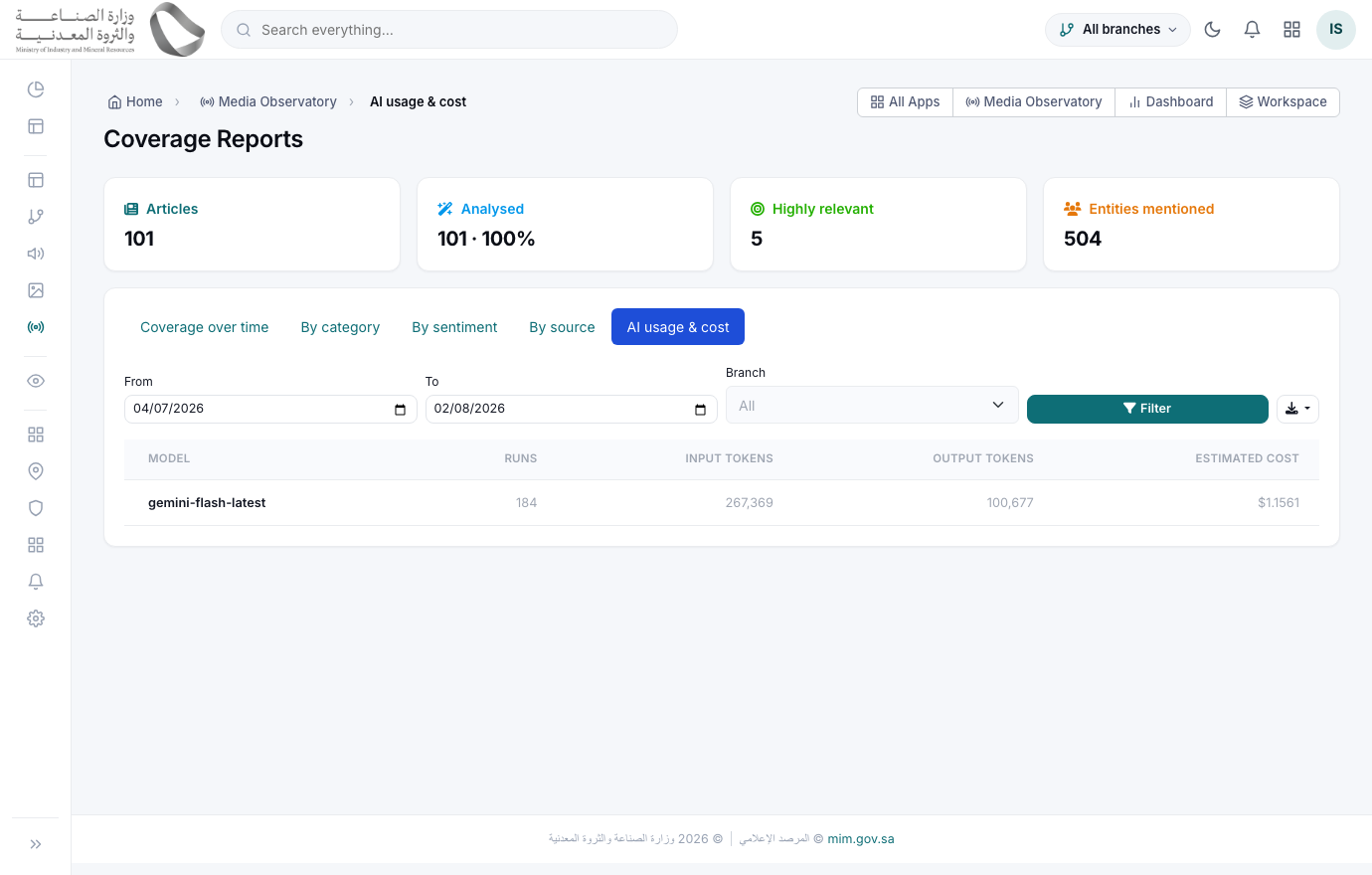
Watch what it costsاستهلاك الذكاء الاصطناعي وتكلفته
AdministratorMedia Observatory › Reports › AI usage & cost/app/observatory-reports?report=ai_usage
Check it weekly. Rows are grouped by model with the tokens in and out and an estimated cost, and the whole report exports to Excel and PDF for the same period you see on screen.
A model whose rate is not configured shows tokens and NO cost rather than a guessed one — an invented figure on a spend report is worse than a blank. Costs show to four decimal places because a per-article cost is a fraction of a cent.
Collect the news
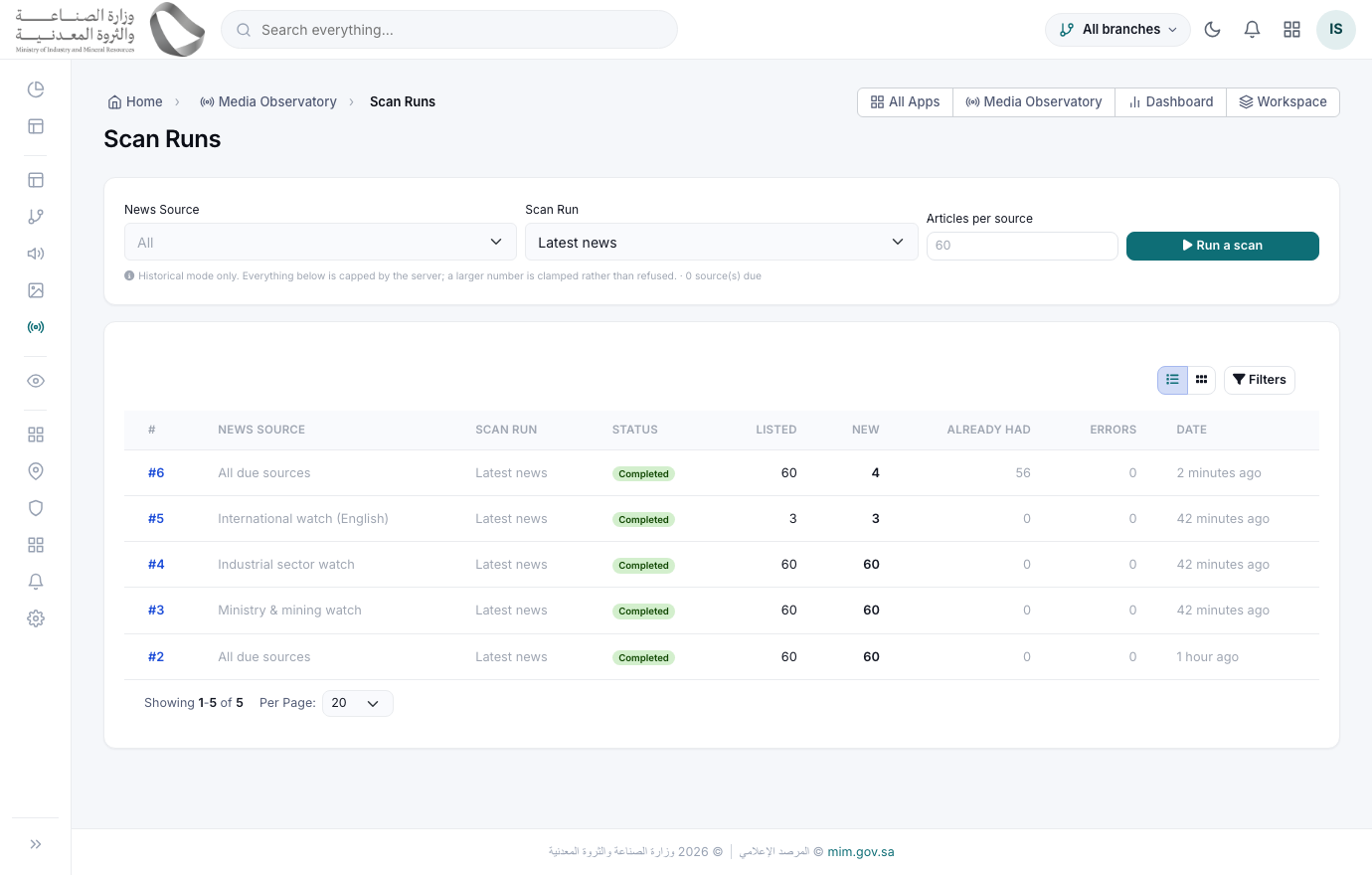
Scans run on a schedule. You only come here when you want a specific sweep or want to see what happened.
Run or watch a scanعمليات المسح
AnalystMedia Observatory › Scans/app/observatory-scans
Pick a mode when you start one by hand:
• Latest — everything published since the last run. This is what the schedule uses.
• Window — a date range, for backfilling an archive.
• Re-analyse — read articles you already have again, after you changed the interest profile or a prompt.
Each source is fetched in its own background job with live counters — listed, imported, duplicates, errors. Duplicates are caught two ways: an identical body and a headline that only differs in punctuation or spacing, so the same wire story arriving from three outlets is stored once and credited to all three. A worker killed mid-run leaves the row marked failed, never stuck on "running".
Work the article listالأخبار
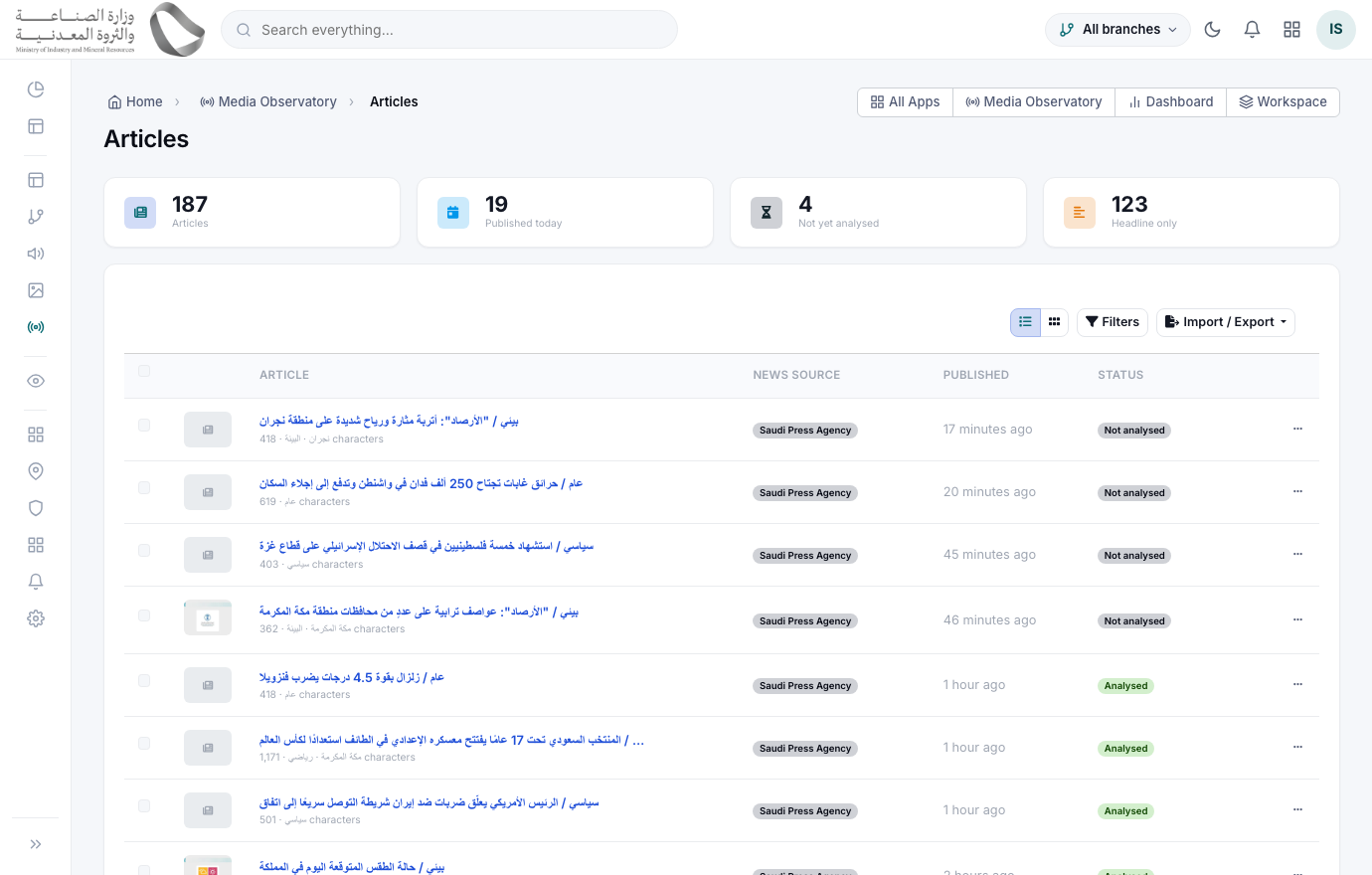
AnalystMedia Observatory › Articles/app/observatory-articles
This is the screen you live in. Filter by source, category, sentiment, relevance, date, review status or story, then act on many rows at once. Save any filter combination you use repeatedly as a view (Stage N) so it is one click tomorrow.
Headline-only articles carry a badge so you never mistake a Google News stub for a full text. Everything on this list exports to Excel and PDF with the filters you applied.
What the AI reads out of an article
One call per article produces everything below. Open any article to see it.
Read one articleتحليل الذكاء الاصطناعي
AutomaticArticles › open any row/app/observatory-articles/{id}
In one pass it produces: a category, the topics, a sentiment, a relevance score with the REASON for it, a short summary, the key points, the named entities, and every measurable figure with the sentence it came from. It also rates its own confidence.
Read the relevance reason, not just the number. A score you cannot interrogate is a score you cannot trust, so the module always shows why it landed where it did.
Under the relevance bar sit the two halves the score was made from: what the model judged, and what your own keyword list matched — with the distance between them named. When those two are far apart it is usually your term list that has drifted, not the model that is wrong, and a wide gap is flagged so you notice instead of averaging past it. An article scored on keywords alone shows no gap at all, because there is no second opinion to disagree with.
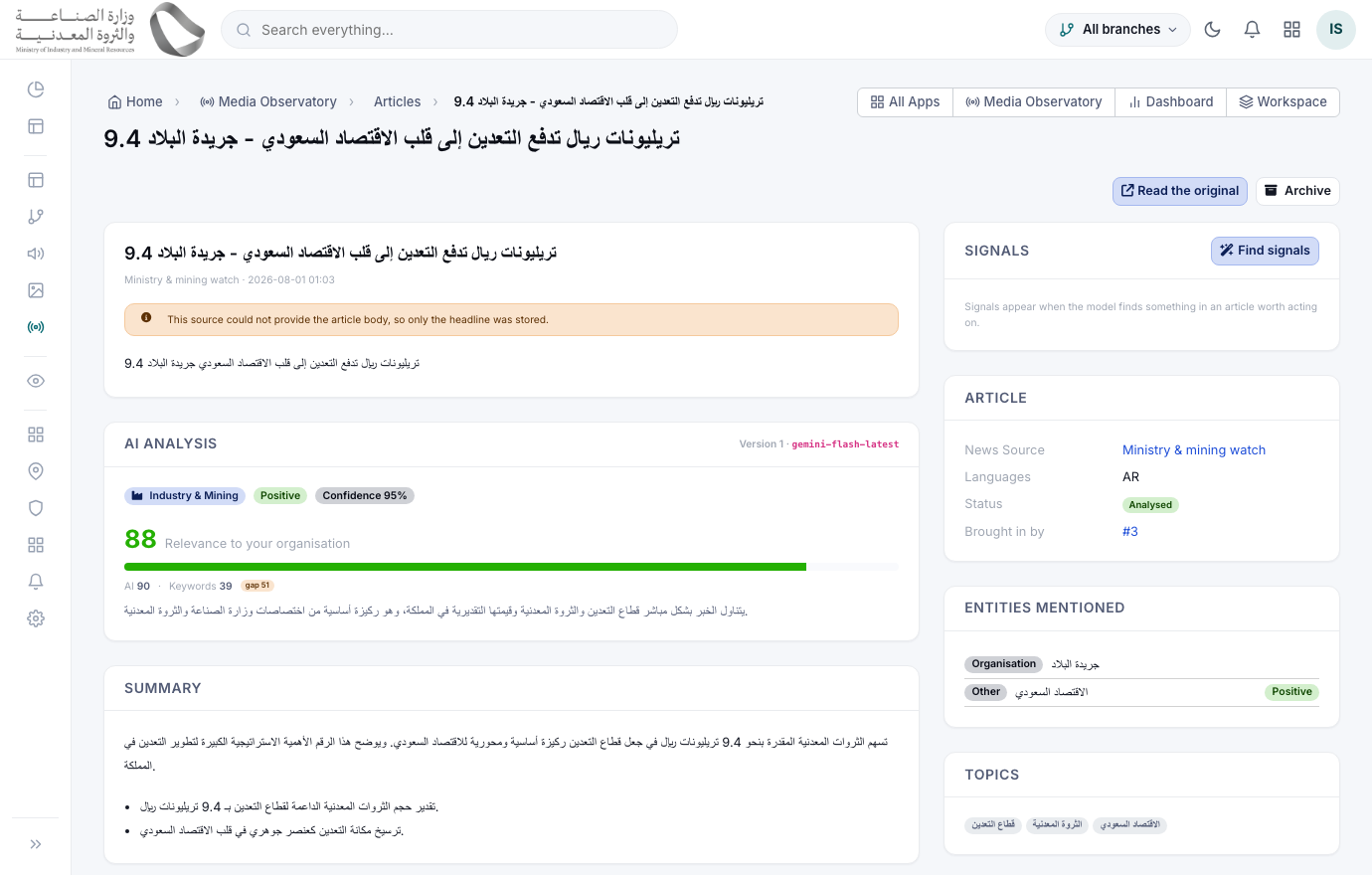
Analyses are never overwritten. A re-run creates version 2 and marks it current; version 1 stays readable, so "what did it say before we changed the prompt?" is always answerable.
Low confidence is handled for you
The model scores its own confidence, and the module routes on it:
- ✓Confident — accepted and made current, nothing for you to do.
- ✓Middling — accepted, but the article is queued for human review (Stage F).
- ✓Near-worthless — recorded but never made current, so it cannot become the article's official reading. Kept, because "we tried and got nothing usable" is worth seeing.
- ✓AI unavailable is NOT one of these. No provider, no consent or a spent budget leaves the article exactly as it was and re-analysable later — it is never marked failed, which would quietly drop it from future passes.
Review & correct
Where a person confirms or overrides what the model said — and the disagreement is kept.
Work the review queueالمراجعة
AnalystMedia Observatory › Review/app/observatory-review
1) Open an article the model was unsure about.
2) Approve it, correct a field, reject it, or escalate it to a colleague.
3) Assign it to somebody and leave a comment if it needs a second opinion.
Every correction records the AI original beside the human value, with who changed it and when. That log is how you find out whether your prompts are actually improving, and it is the evidence you show when somebody asks how a number on a brief was arrived at.
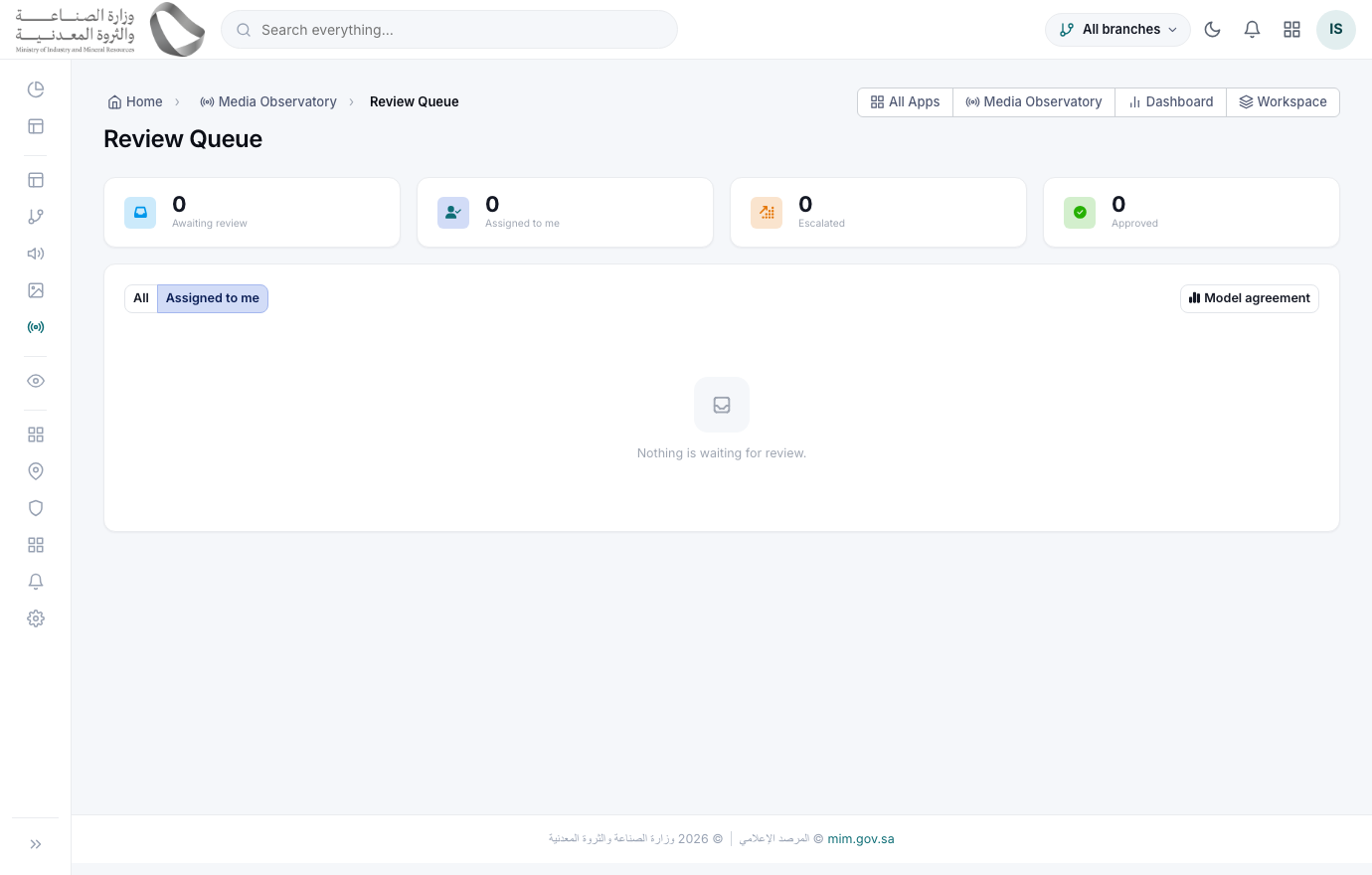
A human decision is never silently reopened. A later automatic run will not overwrite a field a person set — that is the same rule the whole module follows.
Stories & duplicates
The same event covered by six outlets is one story, not six articles.
Open a story clusterالقصص
AnalystMedia Observatory › Stories/app/observatory-clusters
Groups articles covering the same event, and shows how far the story travelled — how many outlets carried it, over what period, and a timeline of the coverage. "Published in six sources" is a different fact from "published six times".
Open a cluster to read the cross-article comparison: how the narrative shifted between outlets, where they contradict each other, what they all agree on, and the detail only one outlet reported.
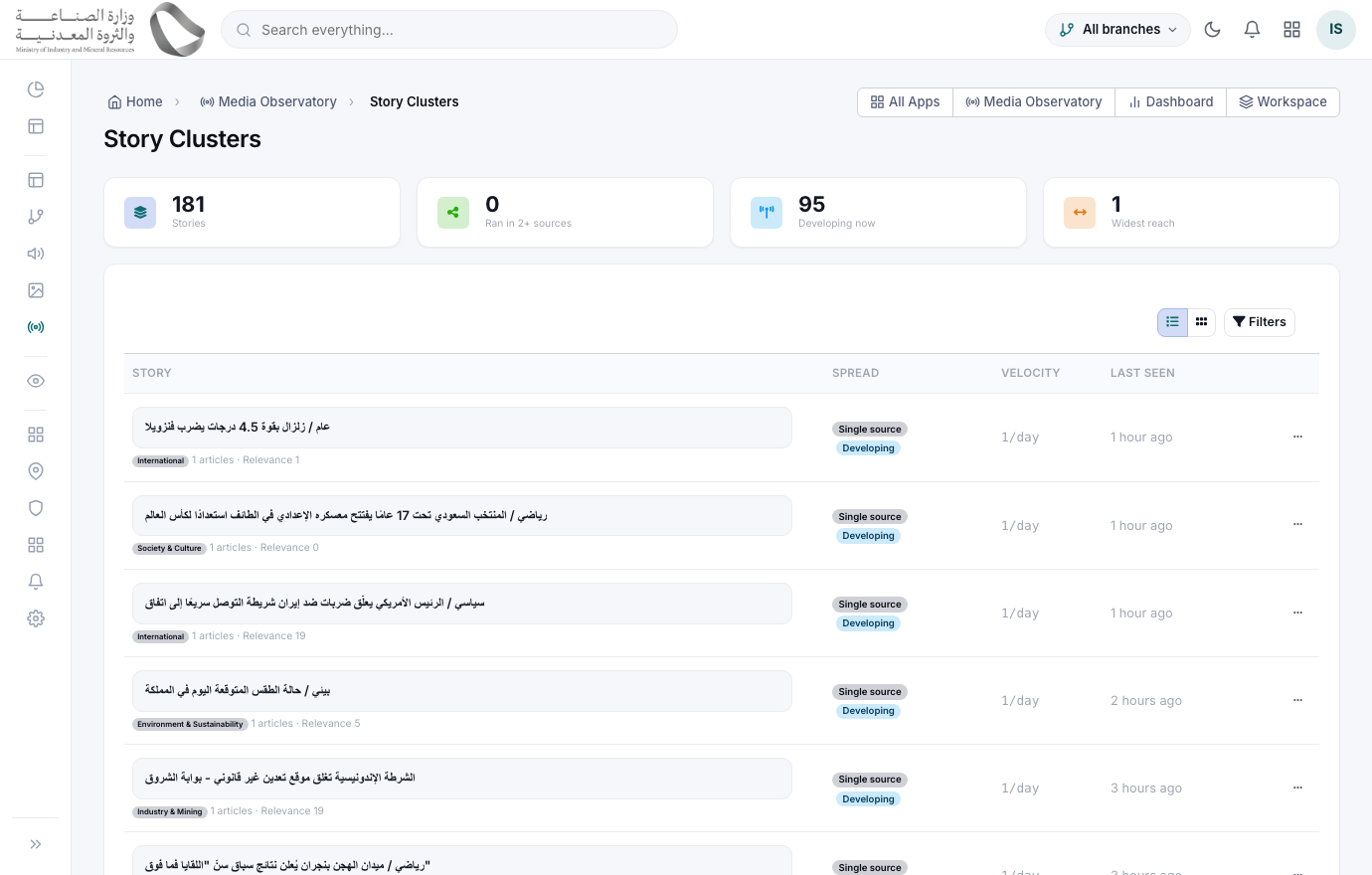
The comparison records how many articles it actually read. A cluster grows afterwards, and without that number "only one outlet reported X" would quietly become a claim about articles the model never saw.
Facts & figures
Every measurable claim, with the sentence it came from and a verification verdict.
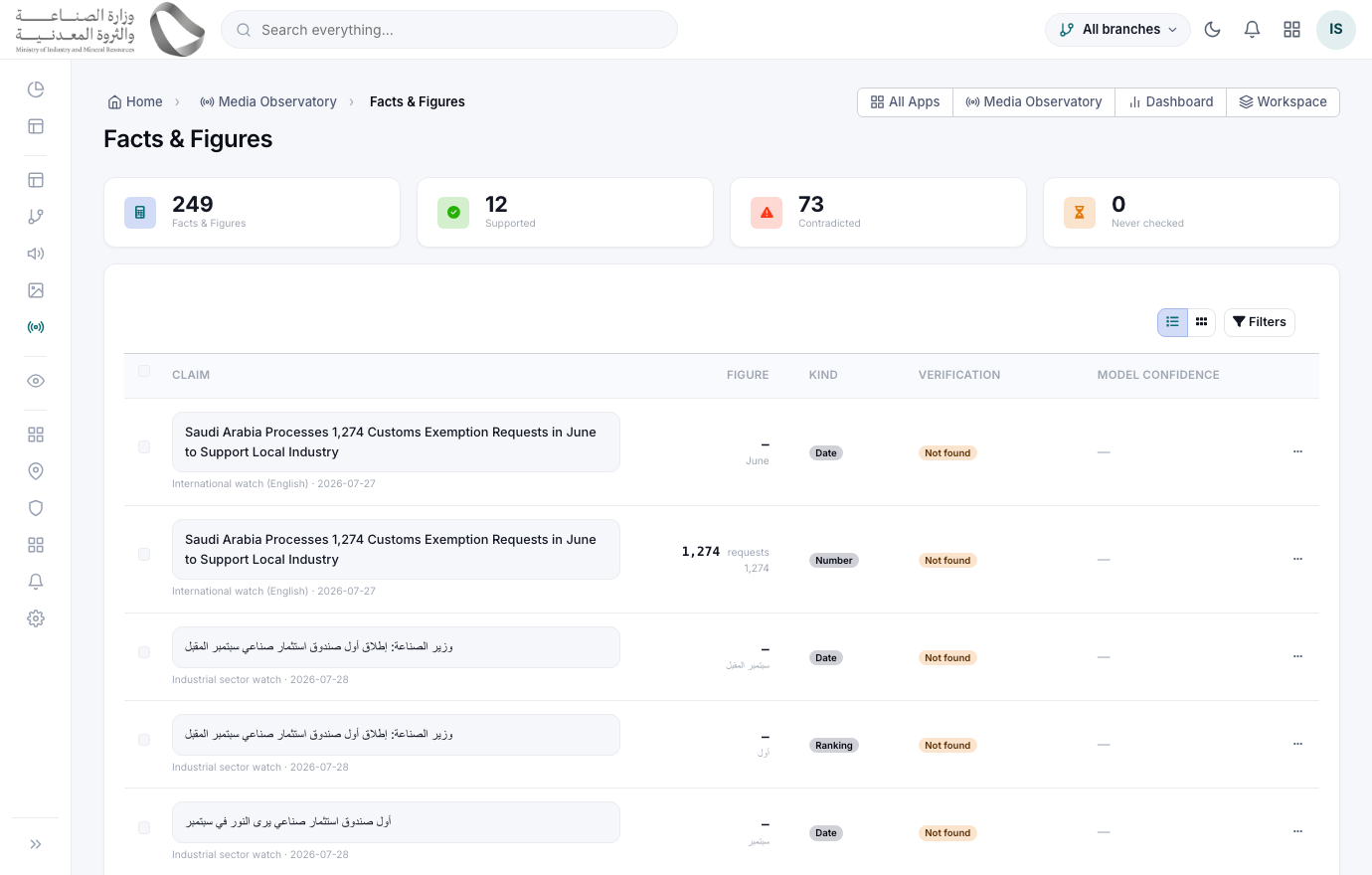
Browse the figuresالحقائق والأرقام
AnalystMedia Observatory › Facts & Figures/app/observatory-facts
Extracts numbers, percentages, amounts, dates, statistics, quantities and rankings — always with the sentence they were taken from, because a bare number is unverifiable. Arabic-Indic digits and written multipliers ("مليون") are normalised, so ١٢٠ and 120 are the same figure.
Check the verdict column before quoting a figure anywhere: Supported, Partially supported, Contradicted, Not found, or Needs human review — each with its reason and the evidence behind it.
Signals — and acting on them
The one place the observatory reaches into the rest of your ERP. It never does so on its own.
Decide on a signalالإشارات
AnalystMedia Observatory › Signals/app/observatory-signals
Proposes what somebody might DO about an article — an opportunity, a risk, a regulatory change, a competitor move or a reputational issue — with a severity, a confidence, a one-sentence recommendation, and the sentence in the article it was drawn from. Most news is not actionable, and an empty list is the normal, correct answer.
Read the recommendation and the quoted rationale, then choose one:
• Create a task — lands in Tasks, assigned and traceable back to this signal.
• Create a lead — lands in CRM as an opportunity to pursue.
• Notify an executive — sends through the normal notification channels.
• Dismiss — with a reason, which is kept.
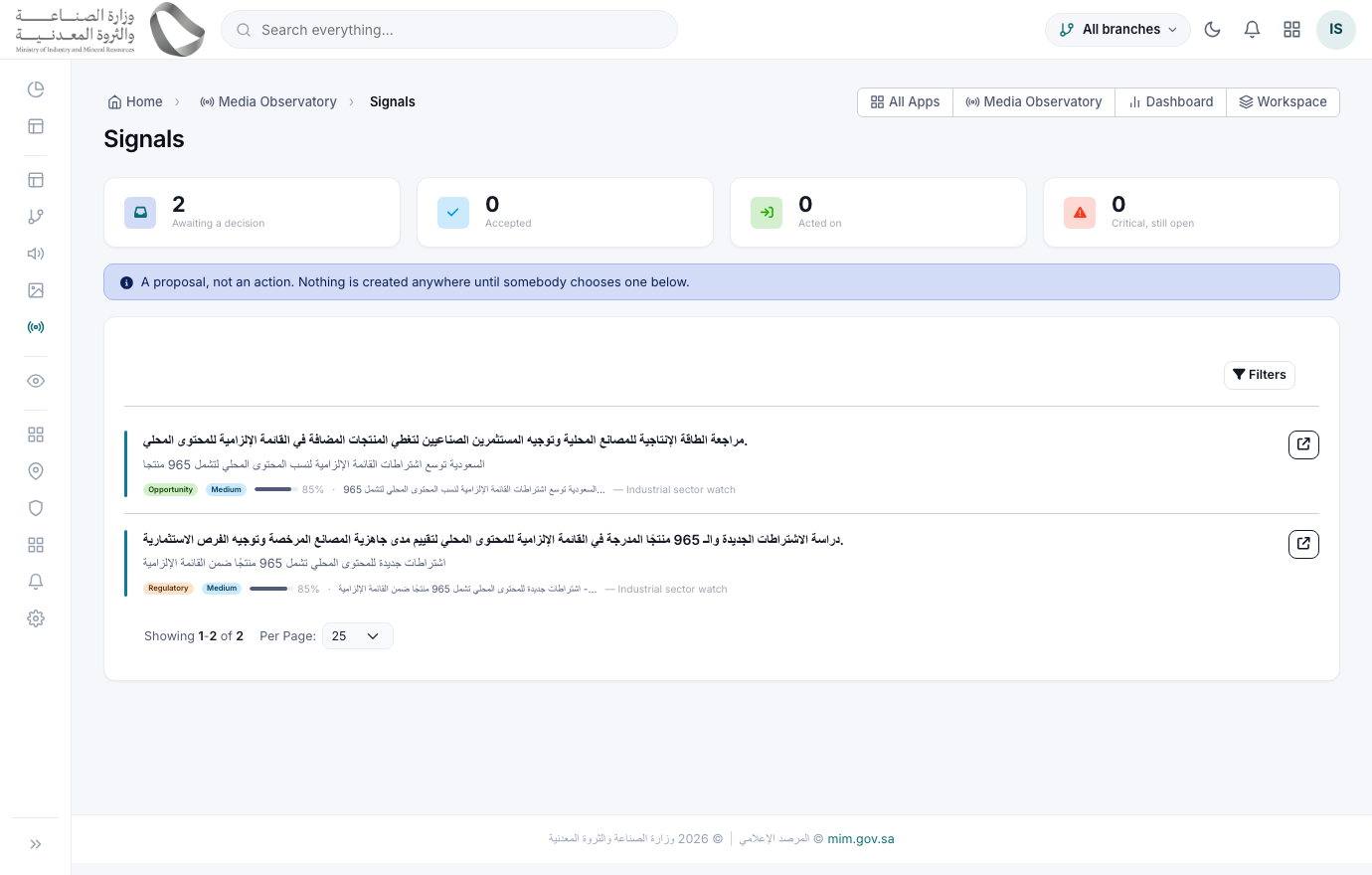
Nothing is created until you press one of those buttons. A dismissed signal is kept with its reason rather than deleted, so "we saw this and chose not to act" stays on the record.
If a target module is not installed
CRM and Tasks are optional. The observatory checks before it offers:
- ✓Without CRM the "create a lead" action is simply not offered — no error, no dead button.
- ✓The created record is titled with the RECOMMENDATION, not the headline, so a sales pipeline never fills up with news items.
- ✓It carries a link back to the signal and the article, and is flagged as system-generated so nobody mistakes it for hand-entered work.
Watchlists, rules & alerts
Tell it what should wake somebody up, and who.
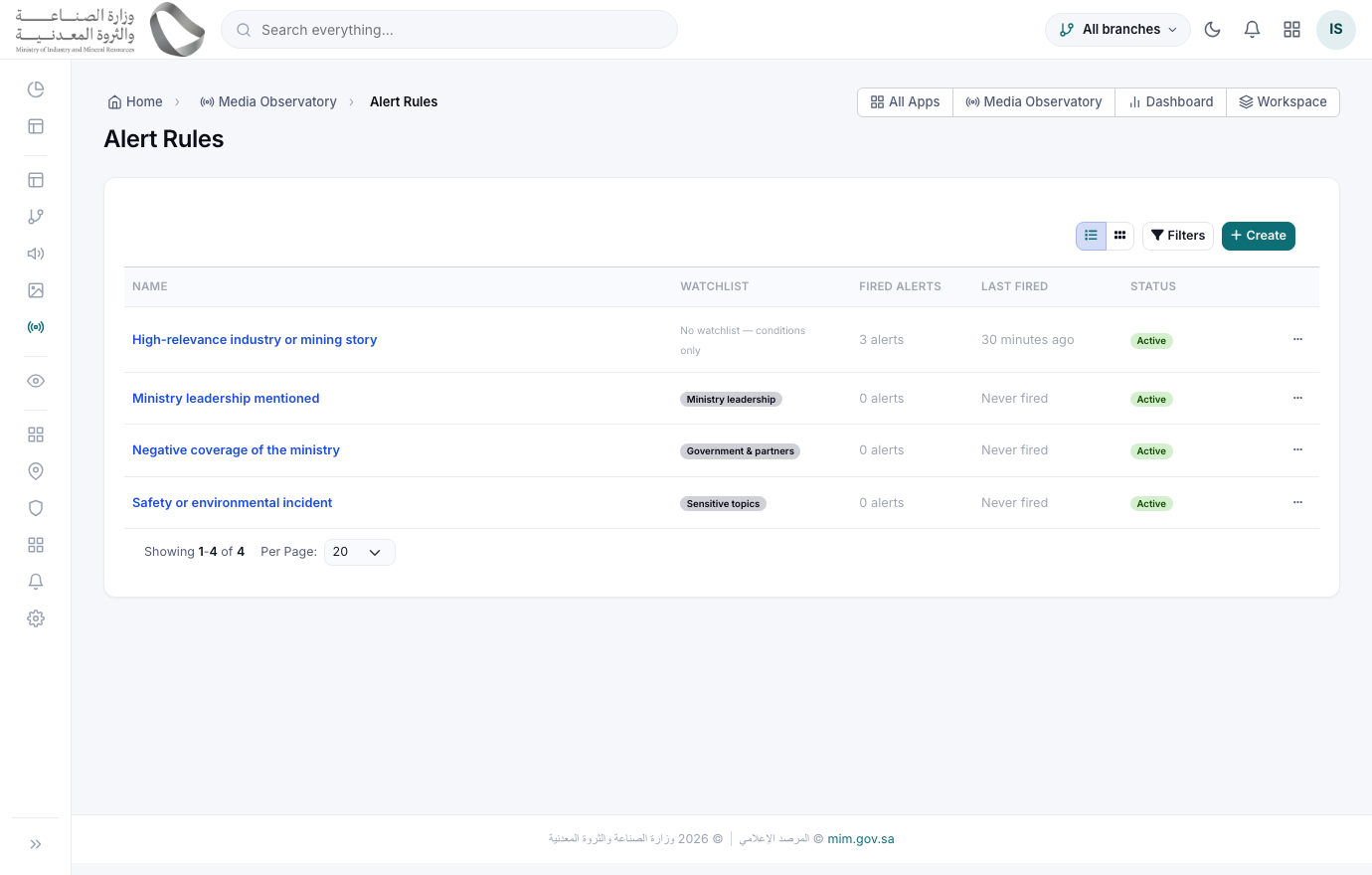
Build an alert ruleقواعد التنبيه
AdministratorMedia Observatory › Alert Rules/app/observatory-alert-rules
1) Set the conditions — a watchlist term appearing, a sentiment turning negative, a relevance threshold, a category, a source.
2) Pick who is told and on which channels: in-app, email, SMS, WhatsApp or web push.
3) Set a throttle so one busy story cannot send forty messages.
Evaluates every new article against every active rule as it arrives. Your interest profile’s “Alert above” applies underneath all of them, so you never have to repeat the organisation’s relevance bar in each rule — and raising that bar later does not mean editing every rule you wrote. A rule that needs a stricter bar than the profile can still add its own relevance condition; the tighter of the two wins.
Recipients keep their own channel preferences, and the message wording is an editable bilingual template — change it once and every channel follows.
See what firedالتنبيهات
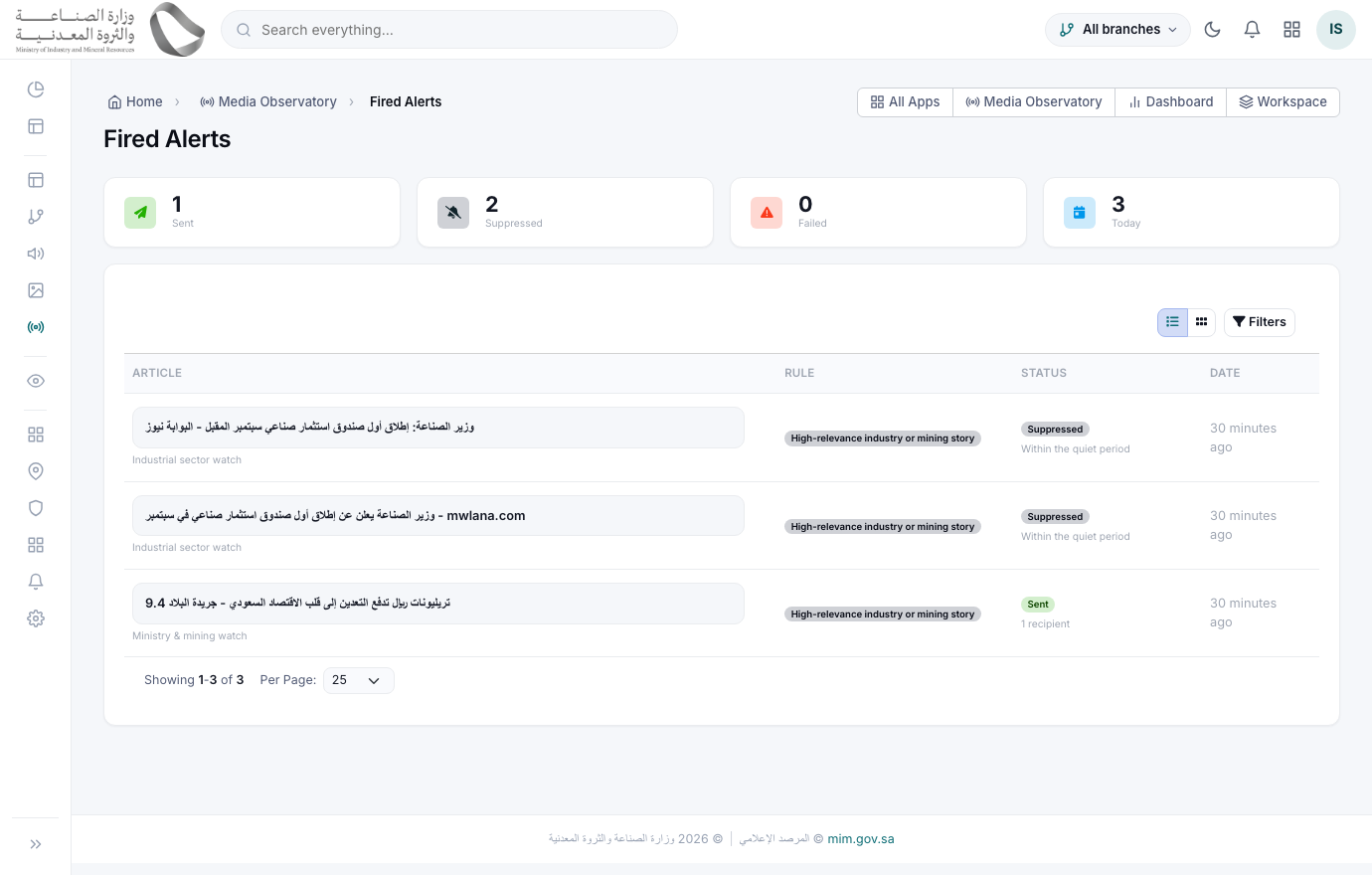
AnalystMedia Observatory › Alerts/app/observatory-alerts
Every firing is listed with the rule that caused it and the article behind it — so a complaint of "why was I messaged at midnight?" has an exact answer, and a rule that fires too often is easy to spot and tighten.
The opposite question is answered here too. A rule that matched but sent nothing still gets a row, marked Suppressed with the reason: below the interest profile threshold, already alerted on this story, within the quiet period, no recipients configured, or media alerts switched off. Each one needs a different fix, so each is named rather than lumped into "nothing happened".
If a rule looks right in its test run but never fires in practice, check the interest profile’s “Alert above” before editing the rule. The test button deliberately answers "does this rule pick the right articles", not "would it have fired at that moment" — the floor, the quiet period and the story throttle all live outside the rule.
Trends, credibility & competitors
What is picking up, who is reliable, and how a competitor is being covered.
Read the trendsالاتجاهات
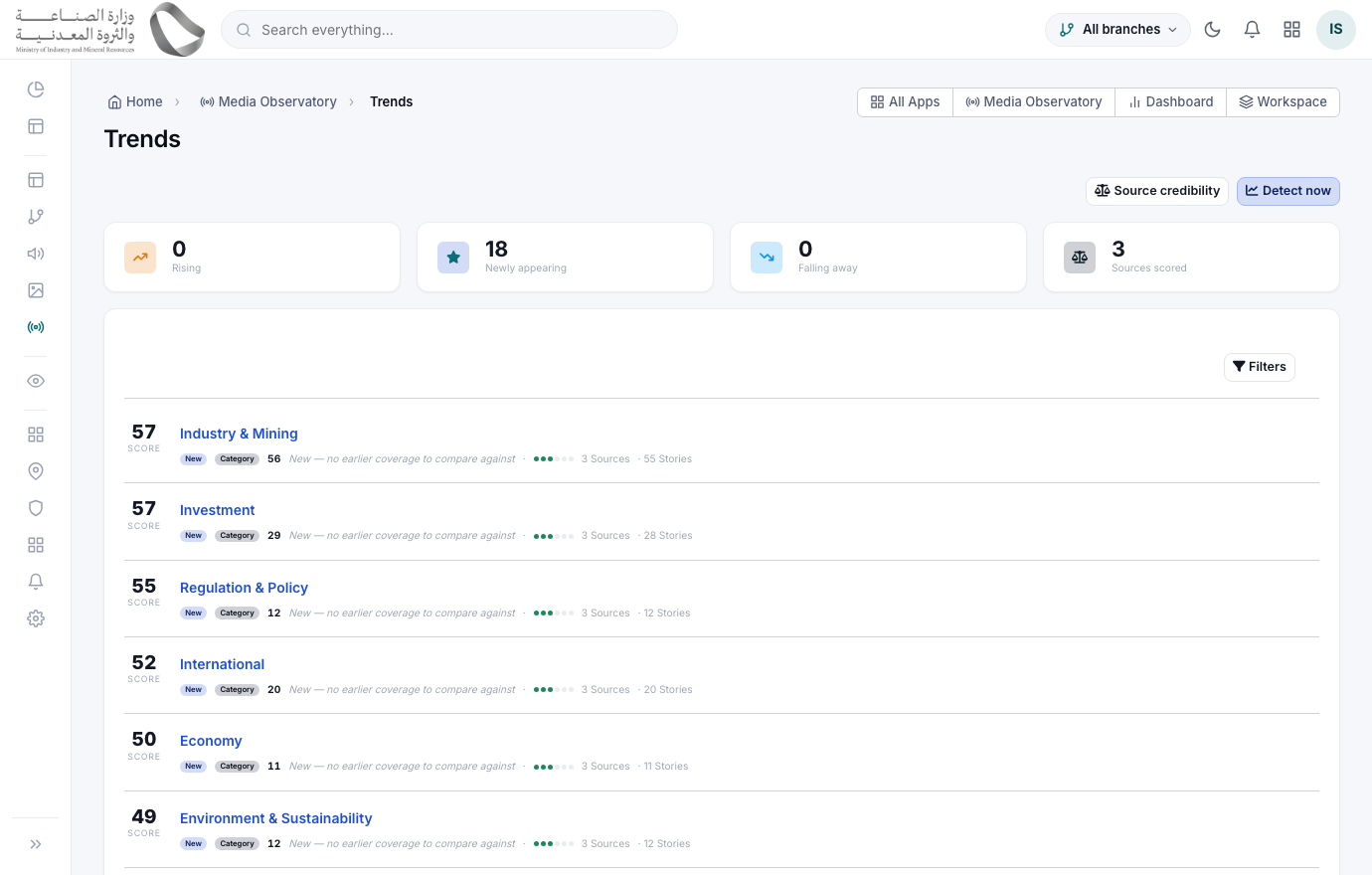
ExecutiveMedia Observatory › Trends/app/observatory-trends
Scores a subject on how many DIFFERENT outlets carry it, how fast it is growing, its volume and its relevance to you. A subject appearing for the first time is shown as new rather than given a meaningless growth percentage.
Trust breadth over volume. One outlet repeating itself all week is deliberately NOT a trend here — a subject needs more than one source before it is scored at all, which is what keeps this list free of noise.
Profile a competitorالمنافسون
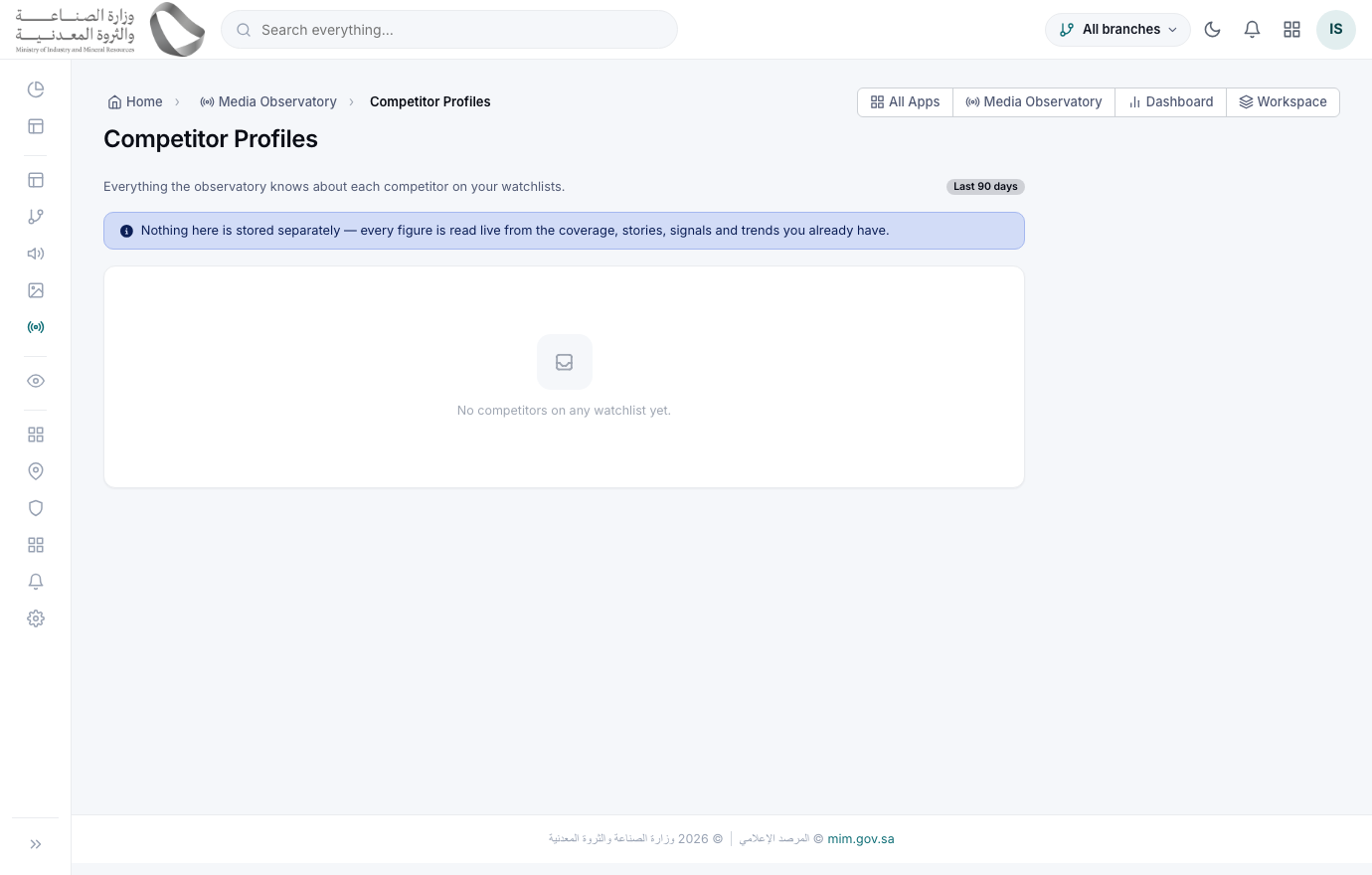
AnalystMedia Observatory › Competitors/app/observatory-competitors
Takes each competitor on your watchlists and shows their coverage over the last quarter: how much, the tone split, which outlets carry them, their recent stories and any signals raised about them. All three tone buckets are always shown — including a zero, because "no negative coverage" is itself a finding.
How source credibility is scored
A computed score sits beside the rating you set by hand — it never overwrites yours:
- ✓Accuracy — how its extracted figures fared under verification.
- ✓Corroboration — how often other outlets carried the same story. Held back until there are enough shared stories to judge, so a small archive is not reported as dishonesty.
- ✓Reliability — whether the feed actually answers when we call it.
- ✓Substance — whether its articles carry real content or only headlines.
- ✓Neither number arbitrates. Your rating never hides an article and is not used to decide which outlet is right when two disagree — that is what fact verification in Stage H is for. The rating exists so the gap between what you expected of a source and what it has actually earned is visible, and a wide gap is a conversation worth having.
Ask the Archive
A question in plain language, answered only from articles you actually hold.
Ask a questionاسأل الأرشيف
AnalystMedia Observatory › Ask the Archive/app/observatory-chat
Ask in Arabic or English — "show me negative coverage this month", "what did this outlet publish about the new regulation". Ask follow-ups; the conversation keeps its thread.
The model does NOT search. It turns your question into a set of filters, the module runs that as a real query, and the answer is written only from the rows that came back — every statement citing the articles it used, each one clickable. The filters it chose are shown above the answer.
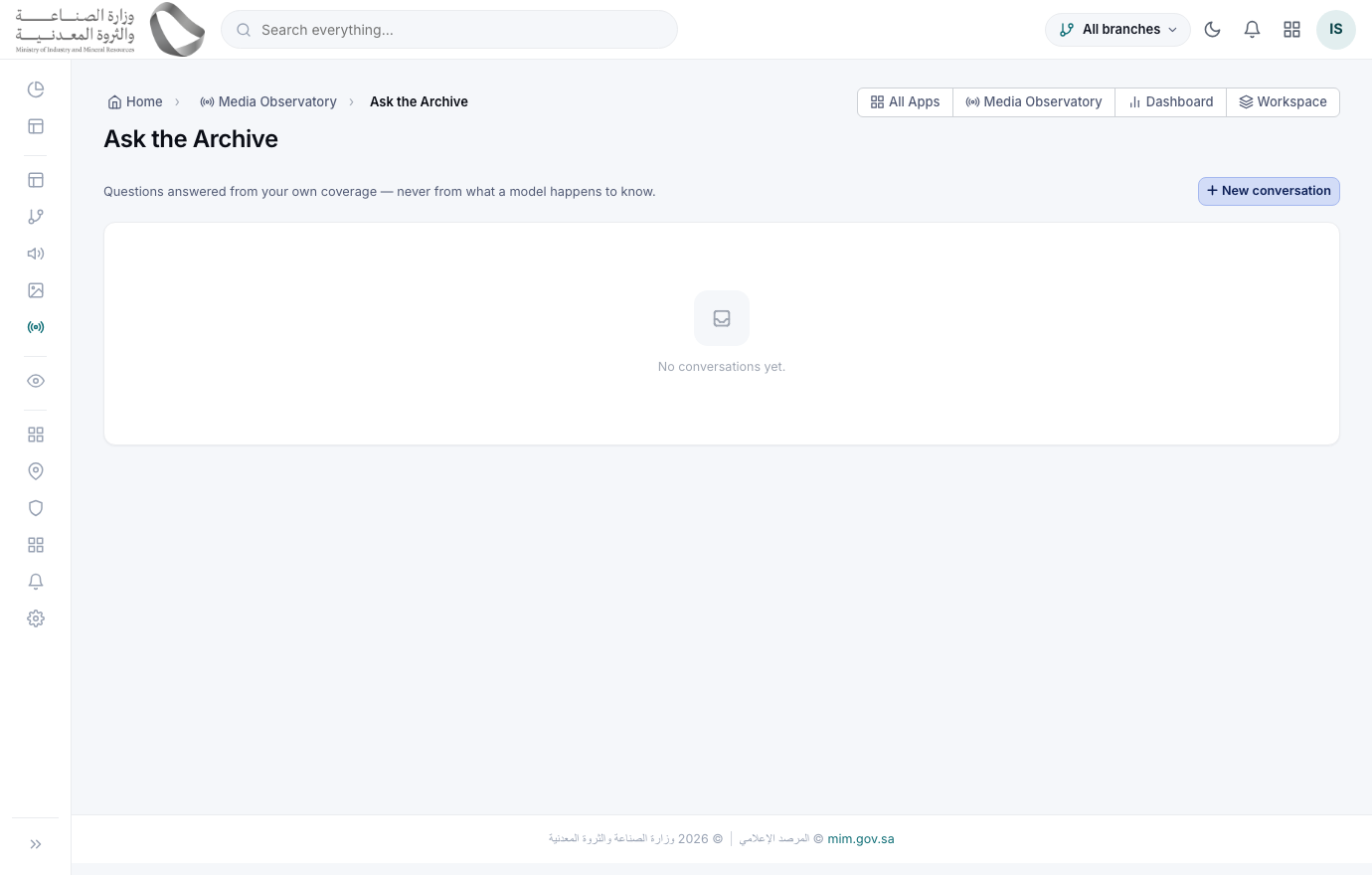
If the query returns nothing, the answer is "nothing matched" — never an improvised one. Check the filter chips above it: an empty answer usually means the question was read more narrowly than you meant, and rephrasing it fixes that.
Dashboard, reports & executive briefs
What you look at each morning, and what you send upward.
The daily dashboardلوحة التحكم
ExecutiveMedia Observatory › Dashboard/app/m/media-observatory/dashboard
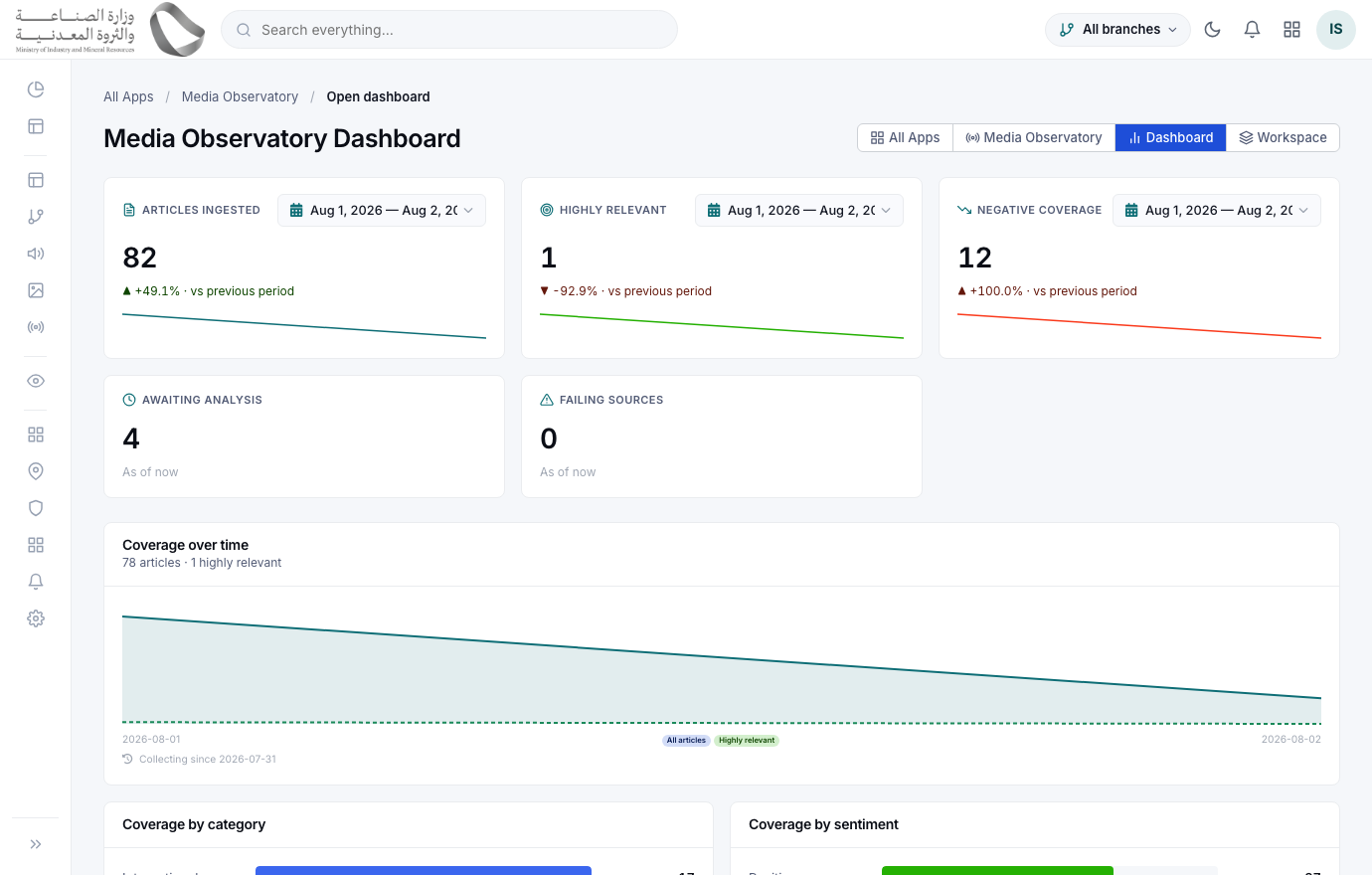
Read the KPI strip, then the coverage timeline, the category and sentiment splits, the relevance spread, your top entities, the source comparison and the geography. Filter the whole page by branch if you run more than one.
Every tile reads from daily pre-computed totals rather than scanning the archive, so the page stays fast whether you hold a thousand articles or a million.
Reportsتقارير التغطية
AnalystMedia Observatory › Reports/app/observatory-reports
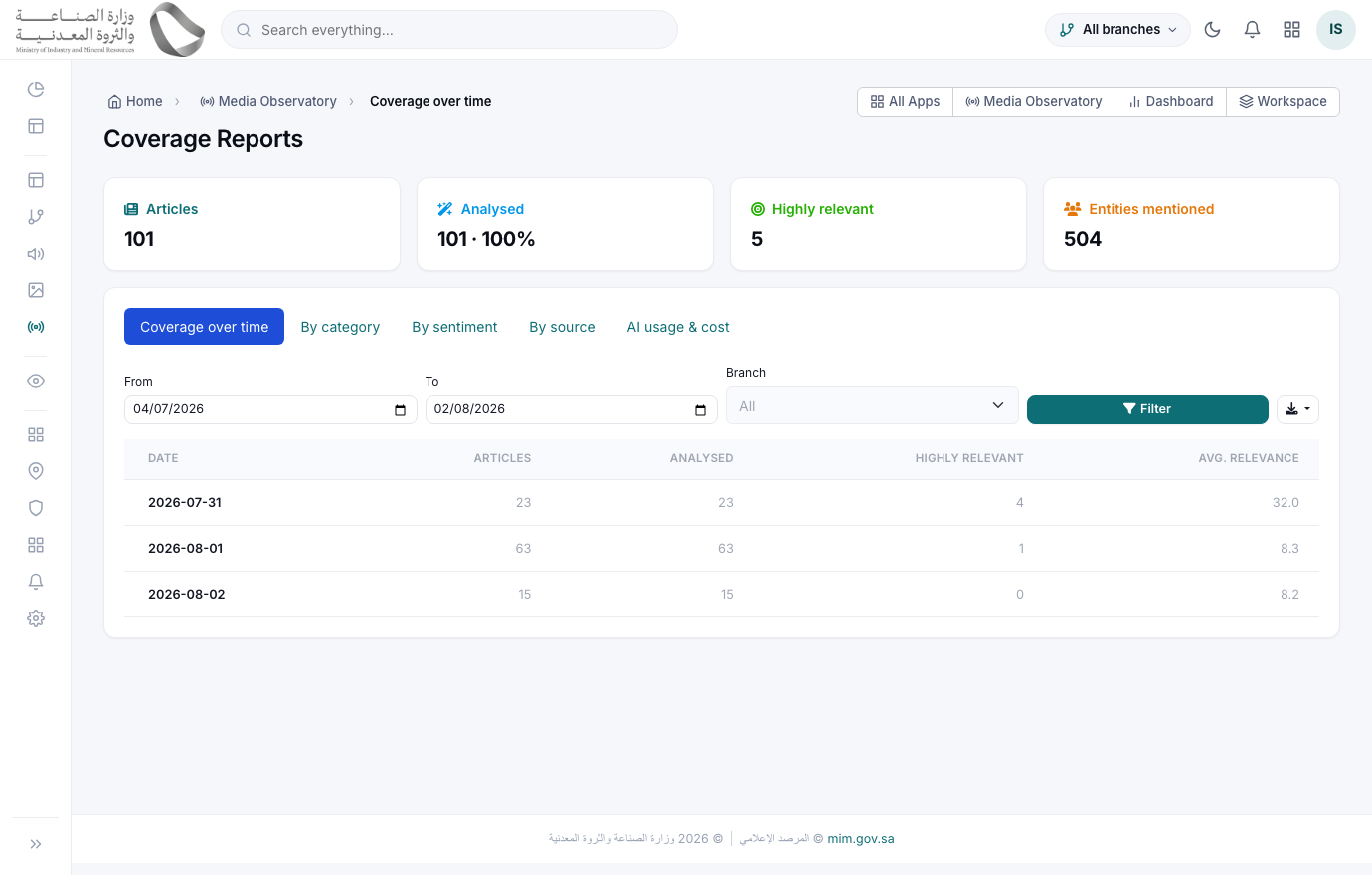
Coverage over time, sentiment, source comparison, period-over-period, and AI usage & cost. Set the dates and the branch, then export to Excel or PDF — the export always covers exactly the period on screen.
Schedule the executive briefالموجزات التنفيذية
AdministratorMedia Observatory › Briefs/app/observatory-briefs
1) Define a brief: daily, weekly or monthly, with its recipients and formats.
2) Tick the formats you want offered — HTML, PDF, Excel. Whatever you leave unticked has no download button on the issue and cannot be fetched by its link either, so the setting is a real restriction rather than a preference.
3) Let the schedule run it, or generate one on demand to preview.
4) Recipients are notified with a link to the issue, which is stored so you can reopen any past edition.
Computes the figures first, then asks the model to write the covering note around them — so the prose can never contain a number the data did not. The note is written in the reader's language, while headlines stay quoted in their own. A quiet period is described as quiet rather than padded. Your interest profile’s “Alert above” applies here as well: an article below it is left out of the brief entirely rather than merely ranked last.
A brief is generated once per period, ever. A scheduler that fires twice cannot send your executives the same brief two mornings running. If a brief looks emptier than the archive suggests it should be, check “Alert above” on the interest profile and the brief’s own minimum relevance — they are combined, and the stricter of the two decides.
Power tools & who can see what
Tune the wording, save your filters, and control access.
Tune a promptالموجّهات
AdministratorMedia Observatory › Prompts/app/observatory-prompts
1) Edit the wording for a task — how it judges relevance, or what counts as a signal.
2) Press Preview to see the exact prompt that would be sent, against a real article from your archive. No provider call, no cost.
3) Press Test run to send it once for real, WITHOUT making it live.
4) Activate when you are happy.
Keeps every version and never edits one in place. Exactly one is live per task and language, and rolling back is simply promoting an older version. Each analysis records which prompt version produced it.
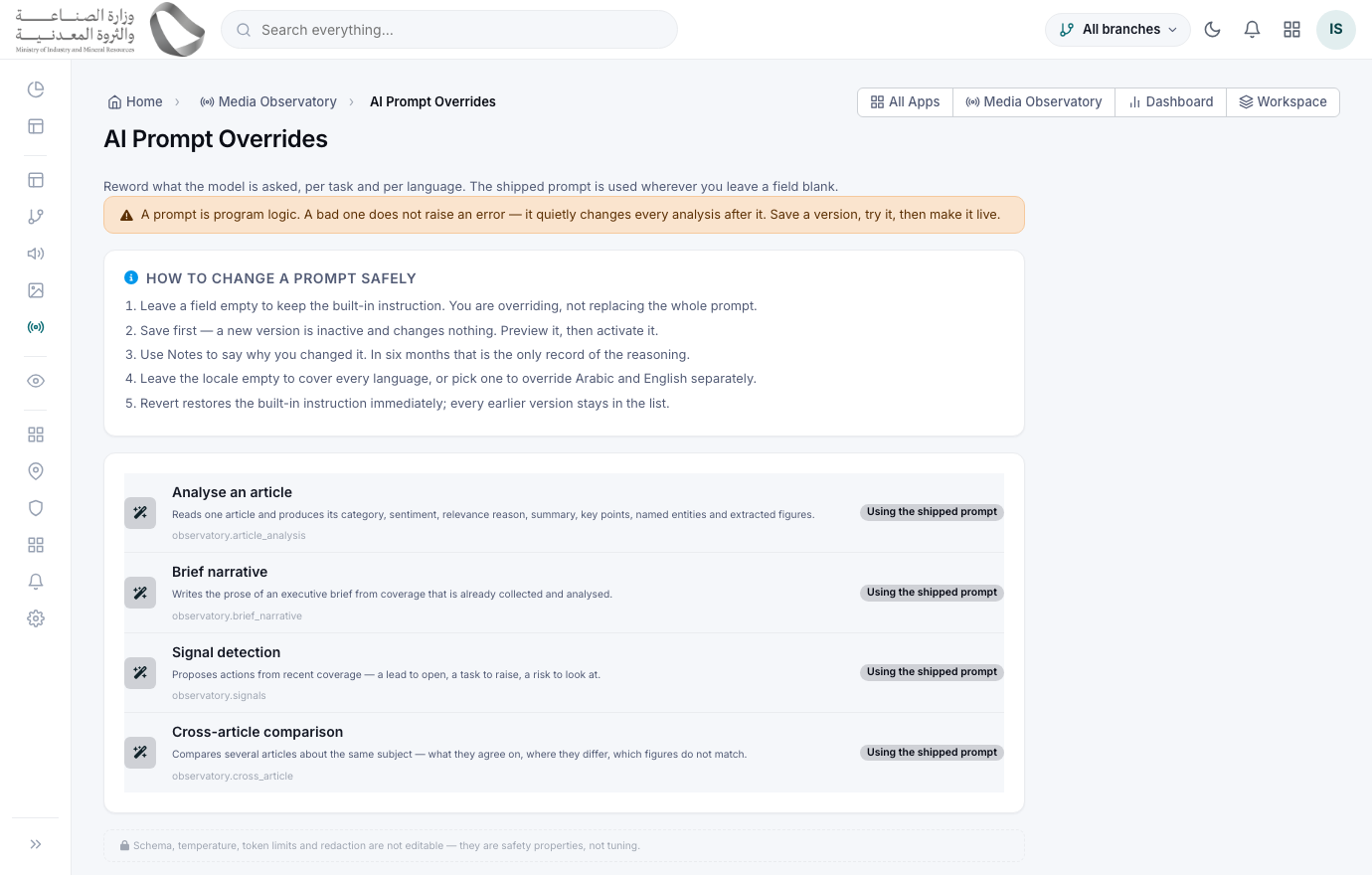
Two prompts are deliberately NOT editable — the two behind Ask the Archive. A reworded question-to-filters step would produce answers that look grounded and are not, which is the one failure this module refuses to make possible.
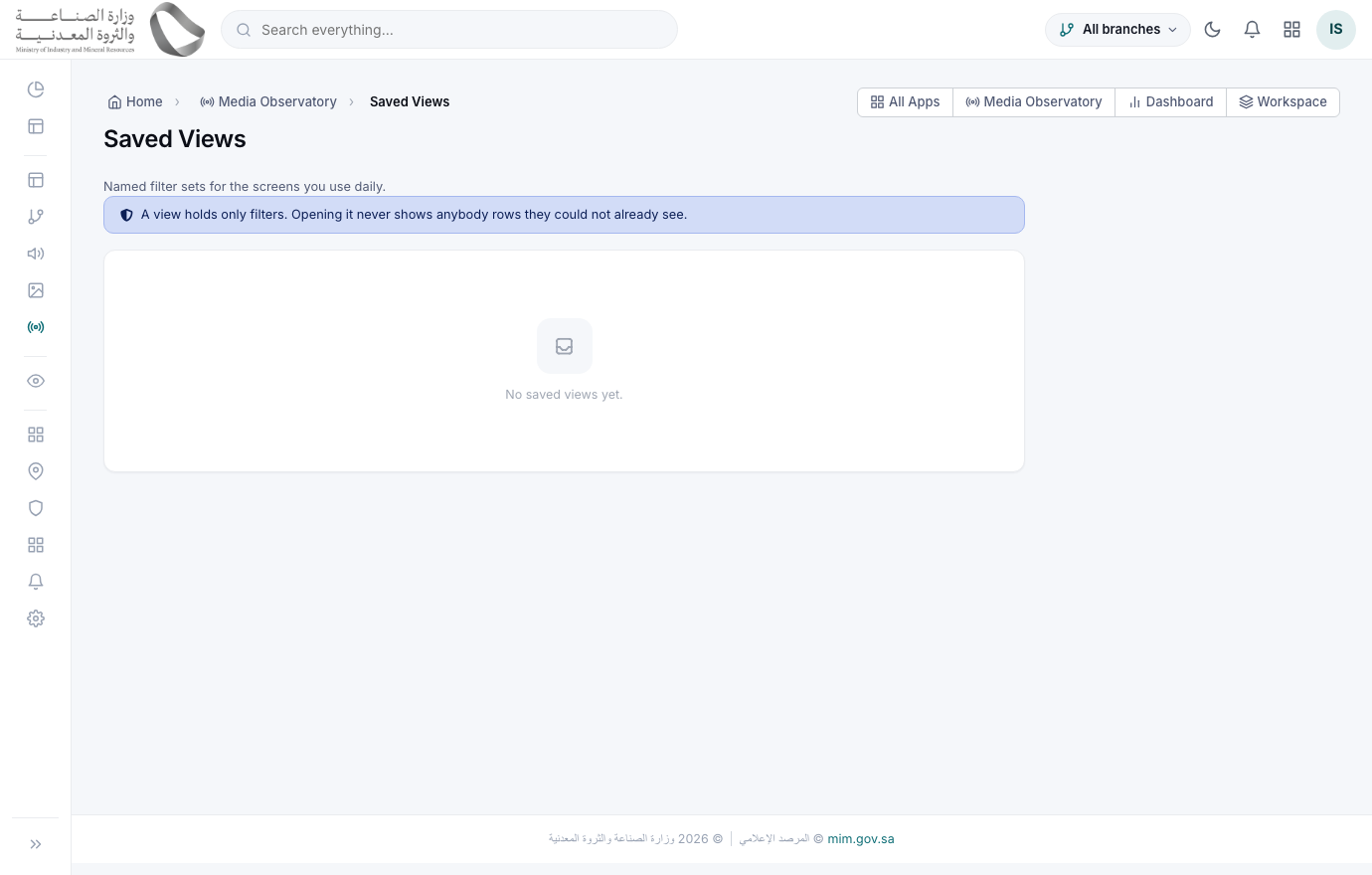
Save the filters you use dailyالعروض المحفوظة
AnalystMedia Observatory › Saved Views/app/observatory-views
Name any filter combination and keep it — "high relevance, needs review", "negative coverage this month". Keep it to yourself, or share it with the team so everyone works the same queue. One can be your default so the screen opens where you want it.
Who can do what
| Role | Typically granted | Notes |
|---|---|---|
| Administrator | Everything — sources, interest profile, alert rules, prompts, briefs, settings. | The only role that should hold prompt editing and source management. |
| Analyst | Articles, review, facts, clusters, signals, alerts, chat, saved views. | The day-to-day role. Add "run AI" only if they should be able to spend on analysis. |
| Executive | Dashboard, trends, briefs and reports — read only. | Sees the conclusions without the working queues. |
| Any role | Only the branches their data scope allows. | Articles, scans, alerts, signals and briefs are branch-aware; sources, categories and the interest profile are shared by everyone. |
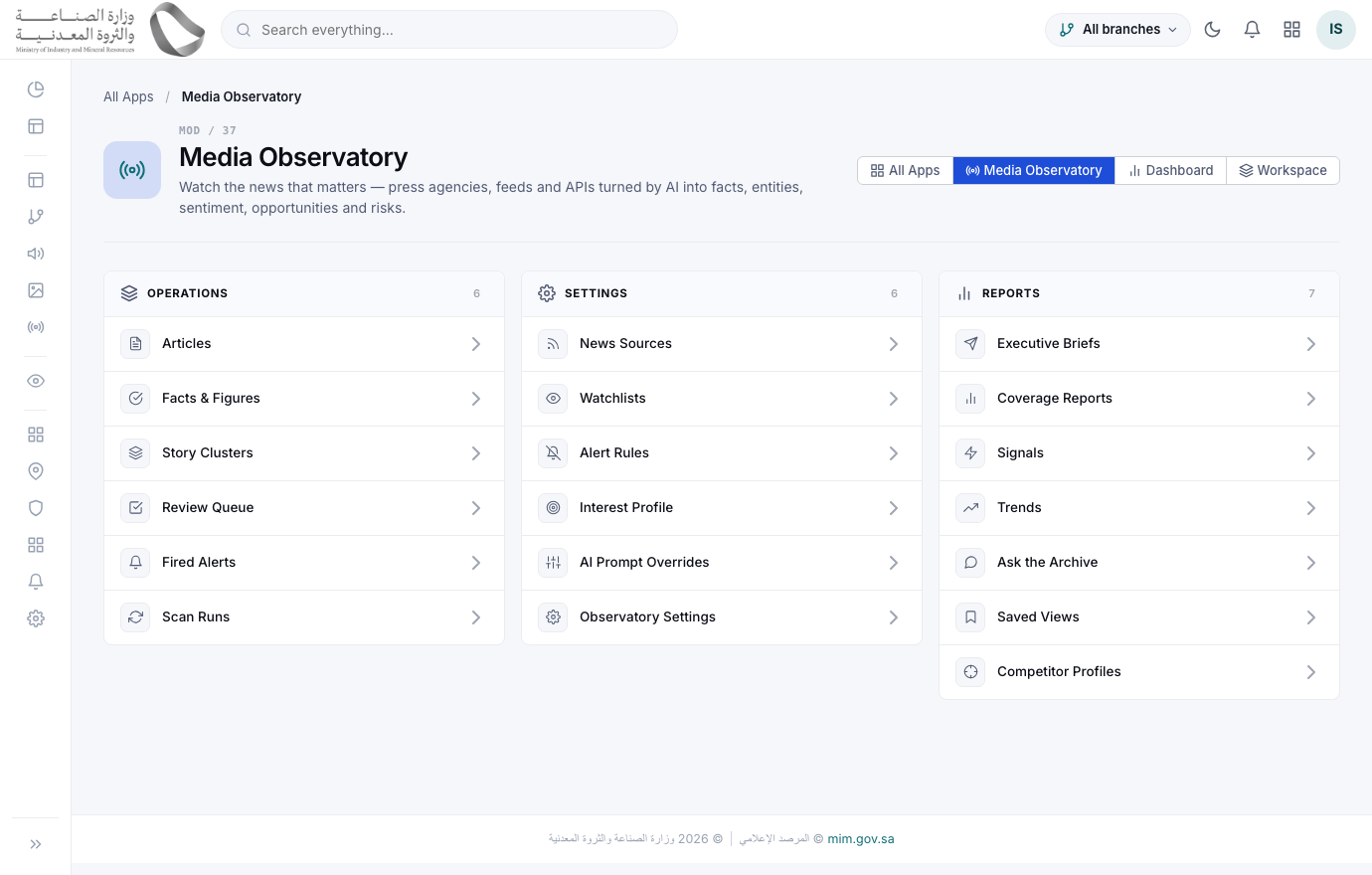
Where everything livesالمرصد الإعلامي
AnalystMedia Observatory › home/app/m/media-observatory
The module home lists every screen in this manual in one place, split into the daily workspace and the settings you touch rarely. Start here if you are not sure where something is.
Need help with the Media Observatory?
Write to the ministry Media Observatory team and we will come back to you on the next working day.